Do you want to fix DNS_PROBE_FINISHED_NXDOMAIN on Google Chrome? Then follow the Methods given in this article.
The Domain Name Server (DNS) is the Achilles heel of the Web. The important thing is that it’s managed responsibly.
– Tim Berners-Lee
Contents
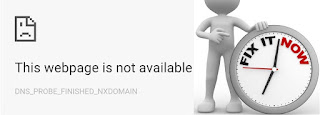
What iS DNS_PROBE_FINISHED_NXDOMAIN?
DNS_PROBE_FINISHED_NXDOMAIN error raised to restricts thou from entering websites creates issues by connecting to external services. Because of this, the sign indicates, that is a DNS (Domain Name System) related error. The purpose of DNS is to fix signs therefore if your device cannot able to determine or change the address, then you will get this error.
Usually, your device stays fixed to handle the DNS router which holds Internet Providers DNS (IP) but meant replaced. We regularly advise using public DNS servers, That seems to be more active and always up.
The error may additionally occur due to unreliable records in the host’s file, That can be prevented and limit it to certain extends of access.
How to fix the DNS_PROBE_FINISHED_NXDOMAIN Error?
Follow the below steps to solve this error.
Method 1:
- Go to Start button proceeding Start Menu.
- You have to type cmd in the search box.
- Now you will see command prompt (cmd) option gets open. Right-click on the Command prompt.
- Select Run as Administrator. This implies run the command prompt by administrator privileges unless commands will not go well.
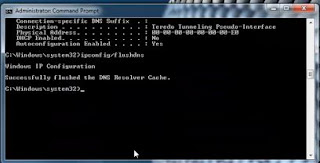
- Type .ipconfig /flushdns (flushdns is used to clear the cache one time. It takes only shorter time to end the process ) and press enter.

- It will give you the message (Successfully flushed the DNS Resolver cache).
- After the command gets done, hold Windows key and then R key once again.
- Type ncpa.cpl (this helps to taken o network connection)and select OK. Now the DNS gets updated without identifying the network adapter). You have to find the network adapter and set it Active.
- To find the network adapter which gets connected. Righ click over the network, then choose Properties in the list.
- Now the network property pane gets open in that select “Internet Protocol Version 4 (TCP/IPv4)”.
- Now the property button gets enabled. Select that Property button.
- Make Radio button active on “Use the following DNS server addresses”.
- Type the following for Preferred DNS Server and Alternate DNS Server in the box.
Preferred DNS SERVER: 8.8.8.8
Alternate DNS SERVER : 8.8.4.4 - Click OK and restart your System.


Method 2:
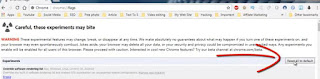
- You can try the resetting of google chrome flag. For this go to chrome and type the following in address bar.
chrome://flags
2. Under the next window, select Reset all to default.
Method 3:
By renewing DNS IP to clear the error. The following steps show you the process.
- Open the Command Prompt /cmd ( in administrative rights).
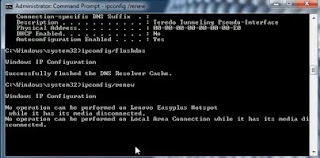
- Run the command.
ipconfig / renew
3.It disconnects you from a network by providing a message.
No operations can be performed on hotspot\wifi while it has a media disconnected.No operations can be performed on Local Area Network while it has a media disconnected.
4.You don’t do anything it will automatically connect to the network again.
5.Now Restart your Computer and attempt to open the domain URL again.
Final Words:
If you follow above opinions correctly, then you will not get the error in the DNS. I suggest you update the latest release versions of OS and other software. You can also check with others:
How to Fix a 500 Internal Server Error? [Resolved with Explanation]
How to fix ERR_CONNECTION_REFUSED error on Chrome?
